Using the touchscreen panel
The panel is the 10-inch touchscreen mounted in the van. It shows the same dashboards, devices, and settings as the web app.
Getting around
The icon rail on the left edge is how you change screens: the four numbered dashboard buttons at the top, and Devices, History, and Settings at the bottom. The rail is always visible.
Within a dashboard, swipe left or right to move between its two card pages — the dots under the cards show which page you're on. Swiping does not move between dashboards; use the rail for that.
Quick settings (pull-down shade)
Drag down from the top edge of the screen (or tap the small tab at the top centre) to open the quick-settings shade, just like on a phone. It has the screen on/off switch, the brightness slider, and a Bluetooth switch. Tap outside the shade or drag it up to close it.
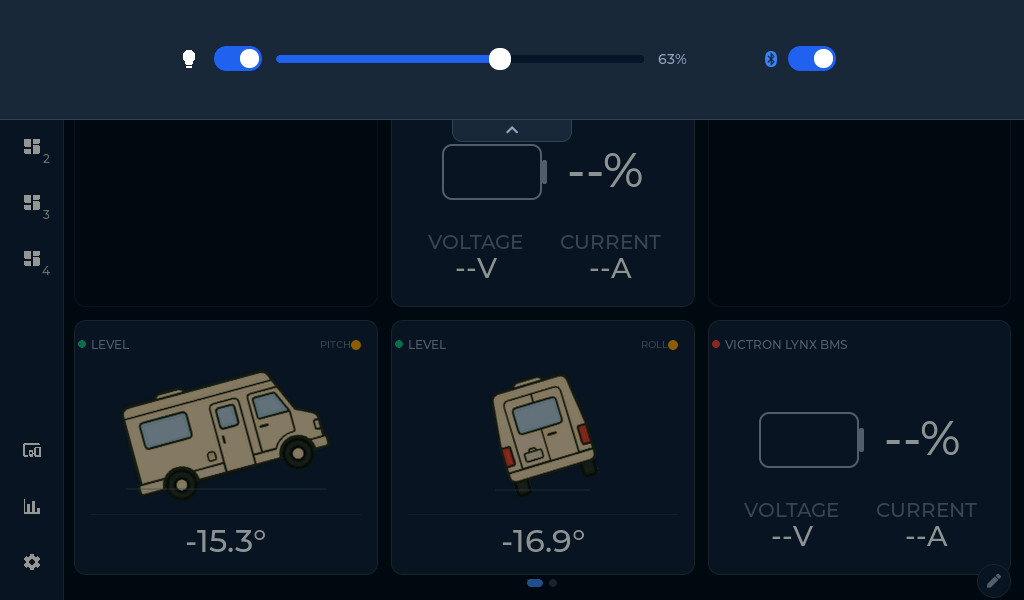 The pull-down shade: screen, brightness, and Bluetooth without leaving the page.
Rearranging cards on the panel
Tap the small pencil button at the bottom-right of a dashboard. Cards dim; tap the card you want to move, and arrow buttons appear on it — each arrow swaps the card with its neighbour, and moving off the edge carries it onto the next page or the next dashboard, so any card can reach any slot. Tap the check mark to finish. The layout is shared with the web app.
Typing on the panel
Tapping a text field (a device name, a WiFi password) raises an on-screen keyboard on the lower part of the screen. Tap anywhere off the keys, or the keyboard's OK, to dismiss it.
Screensaver and screen off
After sitting untouched, the panel first shows a full-screen clock (screensaver), and later turns the screen off entirely. Any touch wakes it. Both delays are set under Settings → Display — see Display settings.
What's not on the panel
Alert rules, the Location map, and firmware upload from a file are managed from the web app — see Alerts and Access from your phone or computer.