Dashboards
The four dashboards — Dashboard 1 through Dashboard 4 in the sidebar — are the home screens. They show live cards for every device you have installed.
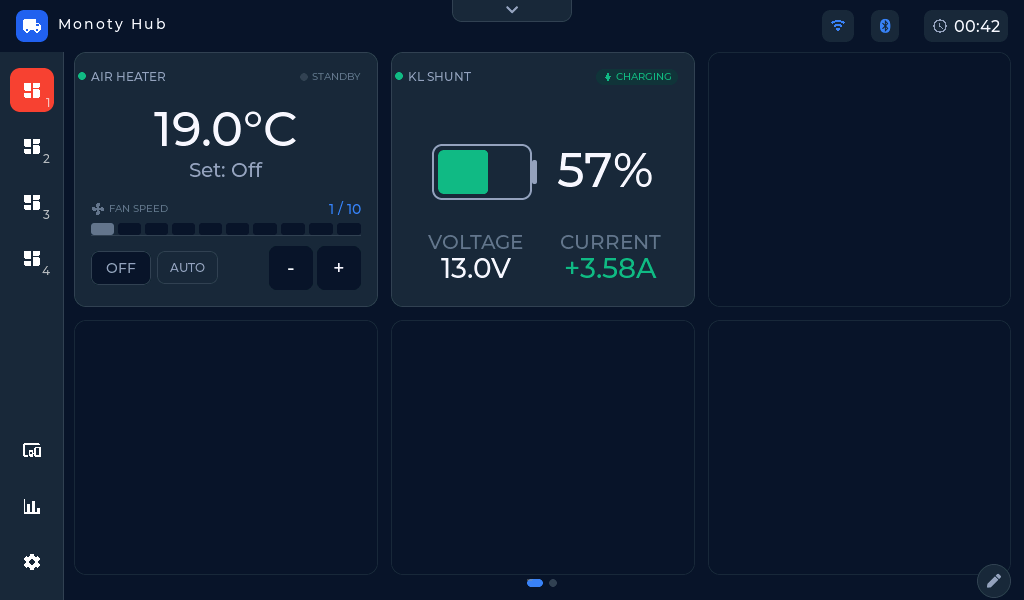 Dashboard 1 on the panel — each installed device contributes its own live cards.
How cards get on a dashboard
Cards appear automatically: installing a device on the Devices page adds that device's cards, and removing the device removes them. You cannot hide an individual card — the set of cards always matches the installed devices. Some devices produce more than one card (for example a Monoty A6 adds relay, dimmer, and tank cards; a Truma adds a Climate card and a Hot Water card).
Each card is titled with the device's name (whatever you typed in the Name field when adding it), with a smaller suffix like "Relays" or "Solar" when one device has several cards.
Pages and layout
Each dashboard has two pages of six card slots. Swipe left or right to change page (on a computer, drag with the mouse or use the arrow chevrons); the dots at the bottom centre show which page you are on. An unused slot shows Empty.
Rearranging cards
Tap the pencil button in the bottom-right corner (Rearrange cards) to enter edit mode, then drag a card to any slot — including a slot on another dashboard: while dragging, hover over a Dashboard N button in the sidebar to switch to it, or drop the card straight onto the button to place it in that dashboard's first free slot. Dropping on an occupied slot swaps the two cards. Tap the check button (Done rearranging) to finish. The layout is saved and shared, so the panel and the web app show cards in the same places.
Dragging cards this way needs a mouse; on the panel's touchscreen use the panel's own card-edit mode instead.
The status dot on each card
The small dot in a card's top-left corner is that device's connection state: green means connected, amber means connecting, red means disconnected. If a card's readings look frozen, check this dot first — see A device stopped updating.
The top status bar
Above every page you'll see the connection badge (ONLINE, OFFLINE, CONNECTING, and similar), chips for any alerts that are currently firing (coloured by severity), the WiFi network name, and the clock.