Updates
Settings → Updates updates the panel's firmware. The card on the right shows the running Version, Build date, and Uptime, and an Update progress bar while an update runs.
Updating the main firmware
Two ways:
- Update from URL — enter the address of a firmware
.binfile in Firmware URL and tap the button; the panel downloads and installs it. - Upload .bin — pick a firmware file from the computer or phone you're browsing from; it uploads with a progress percentage.
The panel restarts into the new firmware when the update completes. Settings, devices, and alert rules are kept.
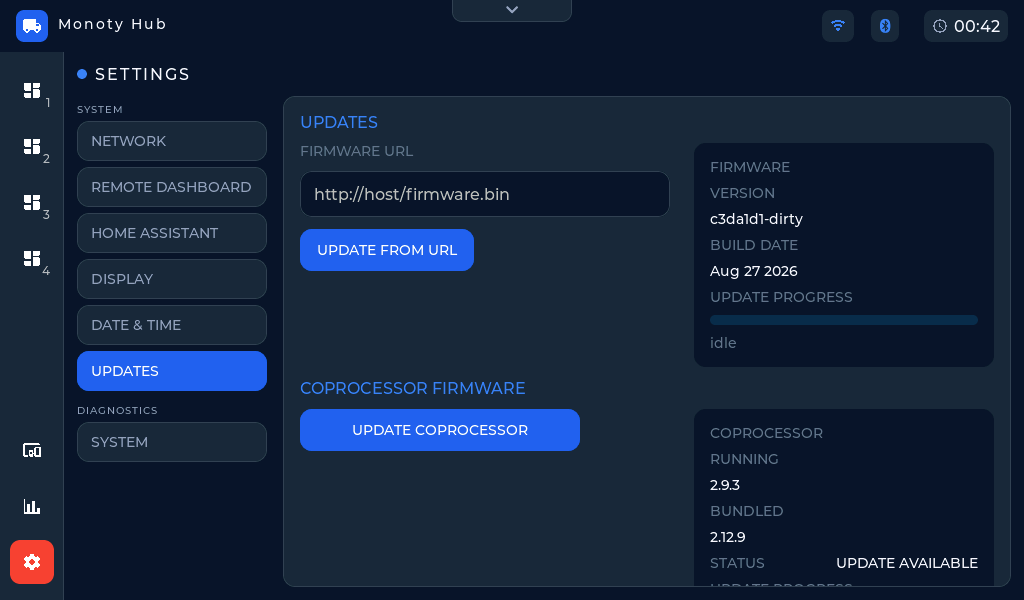 Settings → Updates — the card on the right shows the running version and update progress.
Co-processor updates
The panel contains a second chip (an ESP32-C6) that provides WiFi and Bluetooth. Its firmware ships inside the main update, and the Coprocessor card shows Running (the version on the chip), Bundled (the version this firmware carries), and a Status of update available or up to date.
One button does the whole job. On the web page it names the versions — Update 2.12.8 → 2.12.9 when they differ, Reinstall 2.12.9 when they already match; on the panel's own screen the button is Update coprocessor, and it is greyed out when the versions already match. Pressing it transfers the firmware (about 1.2 MB), switches the chip over, and verifies the version it comes back with — the progress bar and the line beneath it follow those steps.
WiFi and Bluetooth drop for a few seconds while the chip restarts, so the web page may stall briefly; devices reconnect on their own afterwards. There is no automatic rollback for this chip — keep the panel powered until it reports the new running version. If it fails part way, the button becomes Retry update; the already-transferred firmware is reused, so a retry is quick.
Reinstalling the same version is safe, and it is worth trying from the web page if WiFi or Bluetooth is misbehaving in a way a restart doesn't fix.