Network settings
Settings → Network controls how the panel reaches your network. The status card on the right always shows the current connection: network name (or link state on Ethernet), IP address, signal strength, and whether the address is static or DHCP.
Changes on this page take effect on the very connection you may be using, so after applying one the page shows an "Applying…" banner with a timer until the panel answers again. If it doesn't come back at the same address, check your router for the panel's new IP.
WiFi or Ethernet
The panel uses either WiFi or Ethernet, never both at once. The Connection type box shows which is active; Change switches — this reboots the panel. Bluetooth devices are unaffected by the choice.
Connecting to WiFi
On the Connection tab, enter the network name in SSID — or tap Scan to pick from a list of networks in range (each row shows signal strength) — enter the Password, and tap Connect.
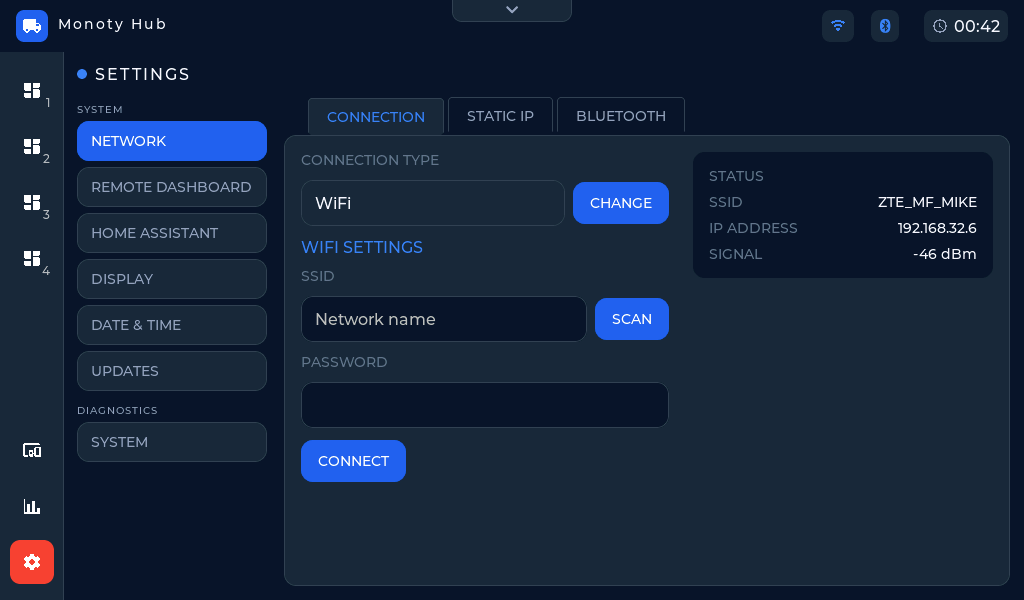 Settings → Network → Connection — the status column on the right always shows the live connection.
Static IP
On the Static IP tab, turn on the Static IP toggle, enter the IP address you want the panel to keep, and tap Apply IP. Turning the toggle off and applying returns the panel to DHCP.
The address is the only thing you normally fill in. Gateway, netmask and DNS are copied from the connection the panel is already on at the moment you apply, so they match whatever your router handed out.
That copy needs an address to copy from. If the panel has never connected — wrong WiFi password, or no Ethernet cable — there is nothing to read the gateway off, and applying tells you so rather than half-configuring the panel. Get it onto the network first, then pin the address.
Advanced
Advanced opens the Gateway, Netmask and DNS fields, filled in with the values that would otherwise have been copied. Change one only if your network is unusual — a subnet that is not a /24, or a resolver you want used instead of the router. Once opened, the values shown are the ones sent.
If the panel is later moved to a different network, or the router is replaced, a static address stops matching and the panel may answer locally while failing to reach anything beyond the LAN. Switch back to DHCP, let it connect, and pin the address again.
Often you do not need this page at all. A DHCP reservation on your router gives the panel a fixed address with nothing to configure here, and nothing that goes stale if your network changes.
Turning Bluetooth off
The Bluetooth tab has a single toggle. Turning it off disconnects every Bluetooth device (shunts, tank sensors, controllers) until you turn it back on — dashboard cards for those devices will show as disconnected.