Devices page
The Devices page is where you install, configure, and remove the sensors and controllers the system talks to. The header shows how many devices are installed.
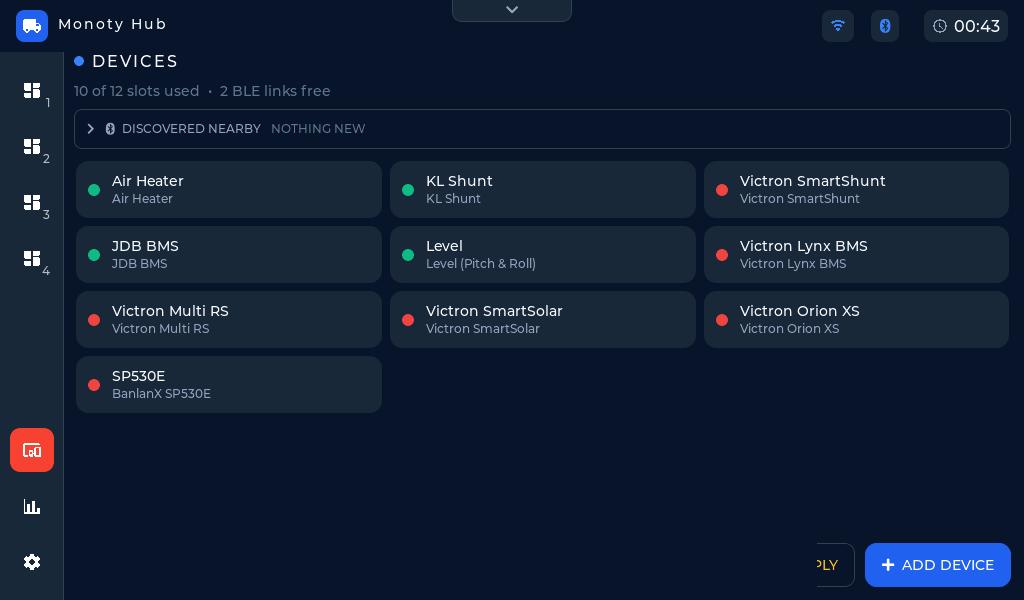 The Devices page — installed devices with their status dots, discovery at the top.
Discovered nearby
The strip at the top, Discovered nearby, lists Bluetooth devices the panel has recognised around you, closest first. Each entry shows the device type, its advertised name, and its MAC address. Tap Add on an entry to install it — the type and MAC address are filled in for you, so you usually only need to confirm.
A best guess marker means the type was inferred from the advertisement rather than confirmed — double-check it is really that product before adding.
Devices that are already installed are not listed here, and neither are Bluetooth devices the panel does not recognise. An entry stays listed for five minutes after it was last heard, so a device that goes quiet for a moment does not vanish while you are reaching for it.
Tap the Discovered nearby heading to fold the strip away; it opens by itself whenever there is something new to add.
The installed list
Each row shows the device's name, its type, and a status:
- running (green) — the device is active.
- reboot to apply / reboot to remove (amber) — a change is saved but waits for a restart.
- configured (grey) — saved, not currently active.
Tap a row to open its configuration.
Adding a device manually
Tap Add device (bottom right), choose the device type, then fill in what that type needs — the picker shows a hint under each type:
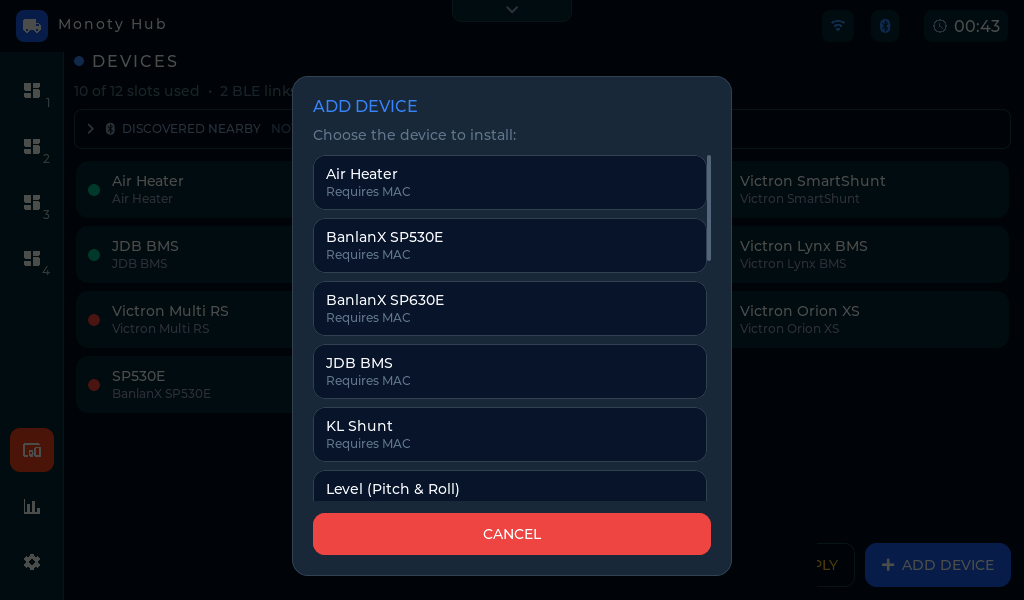 The type picker — the hint under each type says what you'll need to enter.
- Requires MAC — the device's Bluetooth MAC address. Tap Scan next to the field to pick it from a live scan instead of typing it.
- Requires MAC + bindkey — Victron devices also need the 32-character encryption key; see the device's own help page for where to find it.
- WiFi — IP or MAC — network devices take an IP address or a MAC. An IP connects straight away; a MAC is looked up on the network each time, so the device keeps working after your router hands out new addresses. Leave the field blank to adopt the first controller found.
- No credentials — nothing to enter (for example the built-in level sensor).
The Name field is optional but worth setting — it becomes the card title on the dashboards.
 Editing a device — Scan fills the MAC from a live list of nearby Bluetooth devices.
Applying changes
Adding, editing credentials, or removing a device takes effect after a panel restart. The Restart to apply button (bottom right) shows a badge with the number of changes waiting; tap it when you're done making changes. The restart takes a few seconds and your settings are kept.
Device-specific settings inside the configuration dialog (names, calibration, tank sizes, and so on) are different: they apply to the running device immediately, no restart needed. For a brand-new device, restart first, then reopen its configuration to set those.
Removing a device
Open the device from the installed list, tap Remove device, then Restart to apply. Its dashboard cards disappear after the restart.
Slots
There is a fixed number of device slots. When all are full, Add device is disabled and the discovery strip hides — remove a device to free a slot.